
Avro RJ Radio Management Panel: solderless assembly guide
The wiring picture is generated from the design (a drawing, not a photo). Push-on parts are being checked on samples; if a part's grip fails, the guide will say which plug-on breakout to use instead.
No soldering at all. Every part has push-on terminals: tabs that take a spade socket, pins that take a Dupont socket, or its own leads already fitted. Every lead is ready-made; you push one end onto the part and the other onto the carrier board, in the order of the table. Allow about 48 minutes.
You need: spanners or pliers for the panel nuts, a small Phillips screwdriver, the USB cable (in the box), and a PC with MobiFlight. Stick a number flag (sheet in the box) on each lead as you fit it.
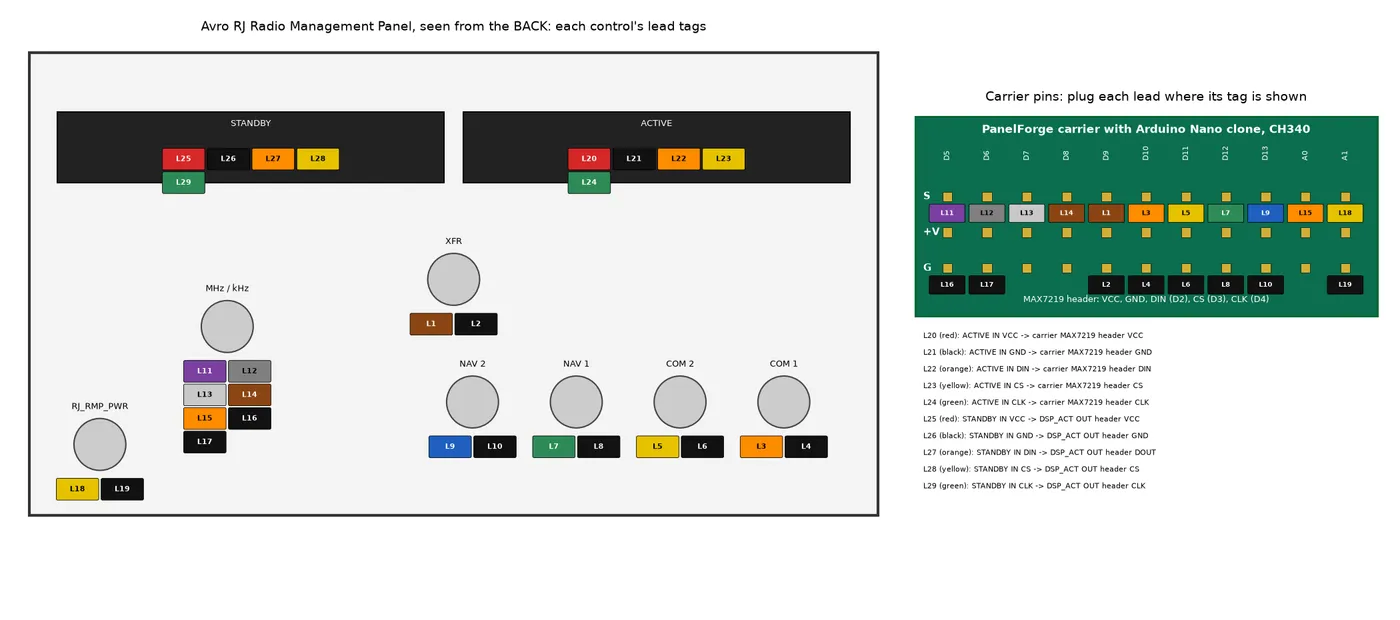
1. Fit the controls
- ACTIVE (DSP_ACT): 7-seg display, MAX7219 8-digit window. Fit per the part's normal panel-mount method. Terminals: factory board with a 5-pin header at the back: push the 5-way lead on.
- STANDBY (DSP_STBY): 7-seg display, MAX7219 8-digit window. Fit per the part's normal panel-mount method. Terminals: factory board with a 5-pin header at the back: push the 5-way lead on.
- XFR (XFR): Momentary push button (16 mm). Insert the bushing through the panel from the front, then fit the retaining nut from behind and tighten by HAND only — a plastic panel strips easily. (fit class round_nutted, 0.3-0.4mm clearance) Terminals: 2.8 mm tab version + spade-to-Dupont adapter leads.
- COM 1 (RJ_SEL_COM1): Square keypad button (12.5 mm), unlit, printed legend cap. Press the body into the cutout from the front until the retaining tabs click into place. Do not force it. (fit class snap_in, 0.2-0.3mm clearance) Terminals: Dupont sockets onto the PC pins.
- COM 2 (RJ_SEL_COM2): Square keypad button (12.5 mm), unlit, printed legend cap. Press the body into the cutout from the front until the retaining tabs click into place. Do not force it. (fit class snap_in, 0.2-0.3mm clearance) Terminals: Dupont sockets onto the PC pins.
- NAV 1 (RJ_SEL_NAV1): Square keypad button (12.5 mm), unlit, printed legend cap. Press the body into the cutout from the front until the retaining tabs click into place. Do not force it. (fit class snap_in, 0.2-0.3mm clearance) Terminals: Dupont sockets onto the PC pins.
- NAV 2 (RJ_SEL_NAV2): Square keypad button (12.5 mm), unlit, printed legend cap. Press the body into the cutout from the front until the retaining tabs click into place. Do not force it. (fit class snap_in, 0.2-0.3mm clearance) Terminals: Dupont sockets onto the PC pins.
- MHz / kHz (RJ_FREQ): Dual concentric encoder Bourns PEC11D-4120F-S0015 (2 x 15 pulse/30 det + push). The shaft/bushing should pass through with light finger pressure — no force needed. (fit class snug_shaft, 0.2-0.2mm clearance) Terminals: Dupont sockets pushed straight onto the PC pins.
- RJ_RMP_PWR (RJ_RMP_PWR): Toggle switch, SPST (6 mm bushing). Insert the bushing through the panel from the front, then fit the retaining nut from behind and tighten by HAND only — a plastic panel strips easily. (fit class round_nutted, 0.3-0.4mm clearance) Terminals: bought pre-wired with Dupont-socket ends (lugs only otherwise).
2. Fit the carrier
- Seat the Arduino Nano clone, CH340 in the carrier's socket, USB end at the carrier's edge.
- Screw the carrier onto the four pillars behind the panel (4 x M3 x 6 in the bag), header pins facing you.
3. Plug in the leads
Each carrier pin column is S (signal) / +V / G (ground), printed on the board. Plug each lead where the table says and tick it off. Black is always ground, red is always +V.
| Lead | Colour | Control | Its terminal | Control end | Plug onto | Done |
|---|---|---|---|---|---|---|
| L01 | brown | XFR (XFR) | SIG | spade adapter onto the tab | S D9 | [ ] |
| L02 | black | XFR (XFR) | GND | spade adapter onto the tab | G D9 | [ ] |
| L03 | orange | COM 1 (RJ_SEL_COM1) | SIG | socket onto the pin | S D10 | [ ] |
| L04 | black | COM 1 (RJ_SEL_COM1) | GND | socket onto the pin | G D10 | [ ] |
| L05 | yellow | COM 2 (RJ_SEL_COM2) | SIG | socket onto the pin | S D11 | [ ] |
| L06 | black | COM 2 (RJ_SEL_COM2) | GND | socket onto the pin | G D11 | [ ] |
| L07 | green | NAV 1 (RJ_SEL_NAV1) | SIG | socket onto the pin | S D12 | [ ] |
| L08 | black | NAV 1 (RJ_SEL_NAV1) | GND | socket onto the pin | G D12 | [ ] |
| L09 | blue | NAV 2 (RJ_SEL_NAV2) | SIG | socket onto the pin | S D13 | [ ] |
| L10 | black | NAV 2 (RJ_SEL_NAV2) | GND | socket onto the pin | G D13 | [ ] |
| L11 | purple | MHz / kHz (RJ_FREQ) | A | socket onto the pin | S D5 | [ ] |
| L12 | grey | MHz / kHz (RJ_FREQ) | B | socket onto the pin | S D6 | [ ] |
| L13 | white | MHz / kHz (RJ_FREQ) | A2 | socket onto the pin | S D7 | [ ] |
| L14 | brown | MHz / kHz (RJ_FREQ) | B2 | socket onto the pin | S D8 | [ ] |
| L15 | orange | MHz / kHz (RJ_FREQ) | SW | socket onto the pin | S A0 | [ ] |
| L16 | black | MHz / kHz (RJ_FREQ) | COM | socket onto the pin | G D5 | [ ] |
| L17 | black | MHz / kHz (RJ_FREQ) | COM2 | socket onto the pin | G D6 | [ ] |
| L18 | yellow | RJ_RMP_PWR (RJ_RMP_PWR) | SIG | its own lead | S A1 | [ ] |
| L19 | black | RJ_RMP_PWR (RJ_RMP_PWR) | GND | its own lead | G A1 | [ ] |
| L20 | red | ACTIVE (DSP_ACT) | IN VCC | socket onto the header | carrier MAX7219 header VCC | [ ] |
| L21 | black | ACTIVE (DSP_ACT) | IN GND | socket onto the header | carrier MAX7219 header GND | [ ] |
| L22 | orange | ACTIVE (DSP_ACT) | IN DIN | socket onto the header | carrier MAX7219 header DIN | [ ] |
| L23 | yellow | ACTIVE (DSP_ACT) | IN CS | socket onto the header | carrier MAX7219 header CS | [ ] |
| L24 | green | ACTIVE (DSP_ACT) | IN CLK | socket onto the header | carrier MAX7219 header CLK | [ ] |
| L25 | red | STANDBY (DSP_STBY) | IN VCC | socket onto the header | DSP_ACT OUT header VCC | [ ] |
| L26 | black | STANDBY (DSP_STBY) | IN GND | socket onto the header | DSP_ACT OUT header GND | [ ] |
| L27 | orange | STANDBY (DSP_STBY) | IN DIN | socket onto the header | DSP_ACT OUT header DOUT | [ ] |
| L28 | yellow | STANDBY (DSP_STBY) | IN CS | socket onto the header | DSP_ACT OUT header CS | [ ] |
| L29 | green | STANDBY (DSP_STBY) | IN CLK | socket onto the header | DSP_ACT OUT header CLK | [ ] |
4. Load MobiFlight and test (5 minutes)
- Plug the USB cable into the board and the PC. MobiFlight finds a module called PanelForge (MobiFlight Nano); it is already flashed.
- Modules: load the
.mfmcfrom the download and click Upload. - File > Open the
.mcc. Start the sim and the aircraft, then click Run. - Press or turn every control once: its row flashes in MobiFlight and the cockpit reacts. The displays show the frequencies.
- A control that does nothing: check its lead numbers against the table (S and G swapped is the usual one).